Buyer’s guide
Best IPTV for Firestick: the right stick, the player and the settings
The best IPTV for Firestick comes down to three things you can settle before paying anyone: a stick that can install the player, a player that shows the guide on Irish time, and a connection that holds the picture steady in the evening. This guide begins with the stick, then covers Downloader, typing the login with the remote, the display settings for 4K and frame rate, cables and Wi-Fi, and fixes for the snags people hit most.
Start with the stick, not the plan
Every Fire TV device will play a stream, but not in the same way. The model sets the sharpest picture you can reach, how briskly the menus move while a big guide loads and, on the newest sticks, whether a player can go on at all. That is why the search for the best IPTV for Firestick starts with the hardware rather than the plan.
The 4K trio: Stick 4K, 4K Max and Cube
All three pass on 4K and HDR from any channel or film made that way, so they belong on a 4K television. Of the two sticks the 4K Max has the stronger chip, which helps with long channel lists, and the Cube is a small box that stands on the TV unit instead of hanging from the HDMI input.
Lite and older basic sticks
These stop at Full HD. Fitted to a Full HD set in a spare room, they lose nothing, and on a line that only holds 10 Mb/s at night Full HD is the most you would see regardless. On a 4K television, the extra detail of a 4K film simply goes unused.
| Fire TV device | Sharpest picture | Where it fits | Wired connection |
|---|---|---|---|
| Fire TV Stick 4K | 4K and HDR, source permitting | A 4K set used most evenings | Ethernet adapter on the power lead |
| Fire TV Stick 4K Max | 4K and HDR, source permitting | The main 4K set, long channel lists | Ethernet adapter on the power lead |
| Fire TV Cube | 4K and HDR, source permitting | The main TV, standing on the unit | Socket built in on recent models |
| Fire TV Stick Lite or older basic stick | Full HD | A Full HD set in a kitchen or spare room | Adapter possible, rarely needed |
| Any Vega OS stick | Varies by model | Appstore apps only, no outside player | Not the issue |
Check for Vega OS before you pay
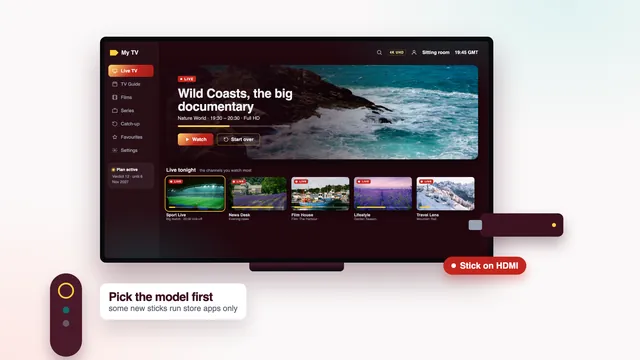
A few of Amazon’s newest sticks come with Vega OS rather than Fire OS, the Android-based system the older models use. Vega OS is closed to anything outside the Amazon Appstore, and with Smarters Pro absent from that store, Downloader has no way to put it on. Look for the operating-system line in the product details before ordering a new stick, and ask the shop if that line is missing.
Downloader, step by step
Because Smarters Pro is not sold through the Amazon Appstore, the route in is Downloader, an AFTVnews app that the Appstore does list, free of charge. Give it about five minutes with the remote.
- From the Fire TV home screen, search for Downloader, confirm the developer reads AFTVnews, and install it.
- Head to Settings › My Fire TV › Developer options, then the line Install unknown apps, and flip Downloader to on.
- Developer options not there? In Settings › My Fire TV › About, click the line with the stick’s name seven times, and Developer options joins the My Fire TV menu.
- Start Downloader, accept its request for file access if one appears, and key the player link from your login message into its address box.
- Choose Install when the player’s screen comes up, then Done. When Downloader offers to delete the installation file, accept: the player no longer needs it.
- Back in Developer options, you can switch Install unknown apps off for Downloader until you next need it.
The link travels with your login instead of sitting on this page, so it always points to a current version of the player. Codes and addresses copied from videos go stale, and some install something other than what they promise.
If you would rather have TiviMate or another player on the stick, the comparison of player apps sets them side by side.
The login, typed with a remote
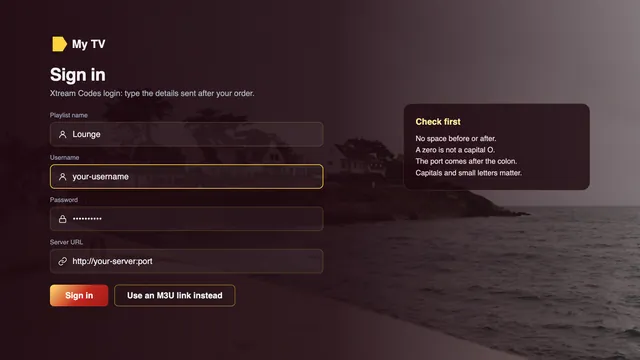
In the player, choose the Xtream Codes way in (the Smarters Pro button reads ‘Login with Xtream Codes API’). Four boxes follow: a profile name you make up, and then the three details exactly as the message spells them.
Most refusals start in the URL box. Copy it character for character, beginning with http:// or https:// as written, and keep the colon and port number on the end when the message includes them, for example http://your-server:port. Capitals count in both the username and the password, and one stray space after either is enough to turn correct details into a refusal.
Typing with the arrow keys is slow, and two habits speed it up:
- Amazon’s free Fire TV app for phones doubles as a remote with a keyboard. Pair it with the stick, and the letters you type on the phone land in the box on the TV.
- Let the player save the profile when it offers. You should only need to enter everything once per stick.
After the login is accepted, the player fetches the channel groups, the on-demand library and a week of guide data. With a catalogue this large the first fetch may run for a minute or two; leave the remote alone until the home screen fills.
Picture settings: 4K, HDR and 50 frames
Out of the box, a Fire TV picks its settings automatically, and in most homes that is right. Three places deserve a look before the first big match or film night.
On the stick
- Settings › Display & Sounds › Display › Video Resolution: leave it on Auto, or pick 4K at 50 or 60 Hz on a 4K set if Auto settles lower.
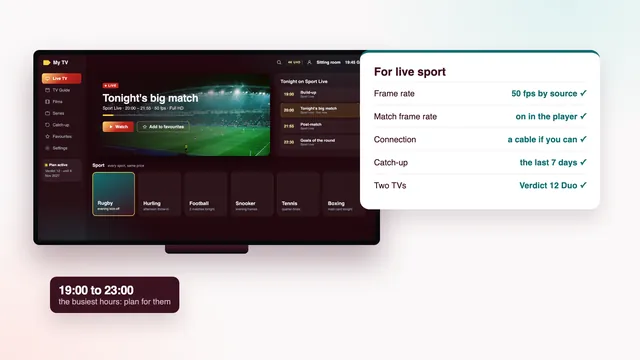
- Match Original Frame Rate, on the same Display page: switch it on so the stick moves the TV to 50 frames a second for live sport and to a film’s own rate for films. It only acts in players that ask for it.
- Dynamic Range Settings: Adaptive switches the TV into HDR only when the programme is in HDR, which keeps colours natural on everything else.
In the player
Find the decoder or player setting and choose hardware decoding. 4K streams are usually encoded in HEVC (H.265), and the stick’s own chip handles that far more smoothly than software can.
On the television
Plug the stick into an HDMI input that accepts 4K, often marked HDMI 2.0, 4K or HDCP 2.2. Some sets also want an enhanced or deep-colour option switched on for that input before they take a 4K HDR signal; look in the TV’s picture or input settings.
No setting turns an HD channel into 4K. Quality depends on each source: 4K UHD shows only on channels and titles produced in 4K, and HDR or Dolby Atmos only if the source carries them and your TV can handle them. Getting the best IPTV for Firestick picture is about letting the stick pass on what the source sends, untouched.
Ethernet adapters and Wi-Fi
Speeds to plan on, measured on the stick itself: roughly 25 Mb/s that does not dip for 4K, 10 for Full HD and 5 for plain HD. A fast result on a mobile phone right beside the router tells you little about a stick tucked behind a wall-mounted TV two rooms away.
A cable is the surest fix. Fire TV sticks have no network socket, but an Ethernet adapter fits between the stick and its power lead and gives it a wired link to the router or to a powerline plug. Most of these adapters run at up to 100 Mb/s, several times what one 4K stream needs. Check that the adapter matches your stick’s power socket before ordering; recent Cubes have the socket built in.
No cable within reach? Join the router’s 5 GHz network rather than 2.4 GHz, and fit the short HDMI extender that usually comes with the stick, which lifts it away from the metal back of the TV. Homes on fixed wireless, or on a 4G or 5G router, should check the speed at their usual viewing hour, as these connections tend to sag in the evening.
For routers, mesh Wi-Fi and the player’s buffer, see the guide to stopping buffering at home.
Common problems and their fixes
| Symptom | Probable reason | Fix |
|---|---|---|
| Downloader cannot install the player | Downloader still lacks the unknown-apps permission, or the stick is a Vega OS model | Grant the permission; on Vega OS, use the TV’s own apps or another device |
| The player refuses the login | A wrong letter, a capital, a trailing space or a URL without its port | Retype it from the message, or send the team a photo of the form |
| Channels load, the guide stays blank | Guide data still downloading | Give it a few minutes, then use the player’s guide refresh |
| Programmes sit an hour early or late | The player’s time offset | Shift the EPG time offset one hour |
| Sport looks juddery | The TV is not switching to 50 frames a second | Turn on Match Original Frame Rate and choose hardware decoding |
| No 4K on a 4K TV | A Lite stick, an HDMI input without 4K, or a channel not made in 4K | Move to a 4K input, check the model, open a 4K title |
| Freezes in the evening | Weak Wi-Fi, the 2.4 GHz band, a busy line, or a server under load at the evening peak | Fit an adapter or move to 5 GHz, check the speed around 21:00, and tell the team the channel and the time |
| Menus lag and the stick feels slow | A full cache, or a stick left running for weeks | Pick the player in Settings › Applications › Manage Installed Applications and press Clear cache, then restart via Settings › My Fire TV › Restart |
Live channels typically trail the broadcast, by a few seconds as a rule and by as much as half a minute at times. That delay is how streaming works rather than a fault, though it explains why a text about a goal can reach your phone before the goal reaches your TV.
The best IPTV for Firestick: the checks a stick decides
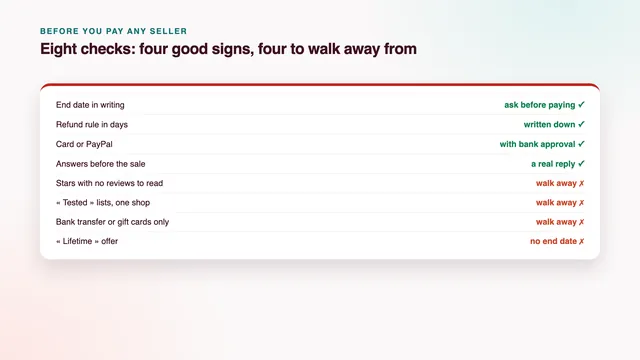
Five of the eight checks on our scorecard come down to the stick and how it is set up:
- Picture on your line (HD, Full HD, 4K by source): a 4K model, hardware decoding and about 25 Mb/s steady on the stick itself.
- Programme guide (7 days, on Irish time): it loads with the Xtream login; the offset setting fixes an hour’s drift.
- Your screens (TV apps, sticks, boxes, phones): a Fire TV takes the player through Downloader, unless it is a Vega OS model.
- Login arrives (2 min after payment): the player link comes in the same message, so the stick can be ready the same evening.
- Help (24/7, WhatsApp or email): the team can walk you through Downloader and the login form at any hour.
Money back is identical on every device: within 7 days of payment, either when the login never arrived or when no screen shows a picture even after the team has helped. A stick that proves too old for 4K is not a refund case, so check the model first; the refund policy has the full wording.
The other checks, and how to weigh the best IPTV for your home as a whole, are on the scorecard for judging the best IPTV, on our home page.
One stick per television, and the plan that fits
Each television needs its own stick and its own copy of the player, signed in with the same details. On Verdict 3, Verdict 12 or Verdict 24, one of them plays at a time; with Verdict 12 Duo, two can play together, which suits a house where the match is on in the sitting room while someone watches a film upstairs.
Verdict 12 is a single payment of €49 in euro for 12 months: €4.08 for each month, about 13 cent for each day, and nothing renews. Spread over 24 months, Verdict 24 at €89 works out at €3.71 a month, while Verdict 3 at €29 covers 3 months.
Compare the Verdict plans side by side, or check the plans page, with the end date of each. Each screen then goes from message to picture with the setup page, and if a box with a socket suits the main TV better than a stick, the buyer guide to Android boxes sets out the specs.
Frequently asked questions
Which Fire TV model should I get for 4K?
Any of the three 4K models, Stick 4K, 4K Max or Cube, each passing on 4K and HDR when the source has them. Choose by where it will live: a stick hides behind the set, while the Cube stands on the unit and, on recent models, takes a network cable directly. Whichever you pick, confirm it is not a Vega OS model.
Can I get the stick ready before my login arrives?
Yes. Install Downloader, switch on the unknown-apps permission and plug in the Ethernet adapter in advance. When the message lands, about 2 minutes after payment, only the player and the login remain.
Is an old Fire TV Stick Lite still any use?
Yes, for HD and Full HD. It cannot show 4K, and a very old stick may feel sluggish with a large channel list. On a smaller set that never shows 4K anyway, it is a sensible choice.
What is the best IPTV for Firestick if two TVs watch at once?
Any plan works on one stick at a time. When two sticks need to play at once, Verdict 12 Duo allows two screens for €79 over 12 months. Each TV needs its own stick with the player and the same login.
What speed does a Fire TV Stick need?
Roughly 5 Mb/s on HD channels, 10 on Full HD and 25 on 4K, holding through the evening and measured on the stick. A wired adapter, or a strong 5 GHz signal from a router in the same room, keeps it there.