Buyer’s guide
Best IPTV for LG TV: webOS, the Magic Remote and the right player
Finding the best IPTV for LG TV viewing comes down to two pieces of hardware you already own: the version of webOS inside the set and the remote in your hand. The plan itself is identical on every screen. This guide shows how to read your webOS version, which players LG’s store tends to list, how activation by MAC address looks on an LG, how to enter a login without losing patience, and the point at which a stick on HDMI saves an evening. We sell IPTV plans at Best IPTV; we do not make or sell any app, remote or stick.
What decides the best IPTV for LG TV homes
LG has built its smart televisions on webOS since 2014. Every year’s range arrives with a newer version, and that version governs which player apps the store offers, how fresh they are and how calmly they cope with 40,000+ live channels. It is the first fact to find.
The second is the remote in your hand. Many LG sets come with the Magic Remote, which steers a pointer around the screen much like a mouse. Cheaper models often arrive with a plain button remote instead. A login entered with a pointer takes a minute or so; with arrow keys it drags on, and one wrong character sends you back to the start.
Everything else, from the channel groups to the 7-day guide, comes from the login and is the same on an LG as on a phone. For what separates a sound plan from a poor one, the home page explains how to judge the best IPTV before paying.
Which webOS your LG runs, and what that means
Open the settings, go to the general or support section and find the page of information about the TV. It shows the webOS version beside the model name. Note both: they settle most questions before anyone has to guess.
| webOS version | LG sets from | What the store usually offers | What we suggest |
|---|---|---|---|
| 1.0 to 3.5 | 2014 to 2017 | Players missing, stuck at an old version or slow with long lists | Plan on a stick or box on HDMI |
| 4.0 and 4.5 | 2018 and 2019 | The main players listed, with updates that may be slowing | Use the TV app while it is current; keep a stick in mind |
| 5.0 and 6.0 | 2020 and 2021 | Current players, listed and updated | The TV app is usually enough |
| webOS 22 and later | 2022 onwards | The widest choice; some sets receive newer versions after sale | The TV app is usually enough |
From 2022 LG has offered newer webOS versions to some sets already in homes, so a TV from that year may now report a higher number than the one it shipped with. Go by the figure on your own screen, not the one printed on the box.
On webOS 3.5 or earlier, the best IPTV for LG TV owners is usually a plan opened on a stick rather than in the TV’s own app. For newer sets the borders in the table are still rough. Player makers decide which versions they support and rarely announce when they stop. A 2017 set may run a player perfectly well this month and lose it after the next store update, so if yours sits near the line, keep a stick in mind before paying an app maker for a year.
LG’s app store and the players it lists
The store sits on the home screen. Older sets called it LG Content Store; on newer ones it is simply Apps. Most LG TVs ask for an LG account before downloading, so you may prefer to create that account on a phone first, where the email and password are easier to type.
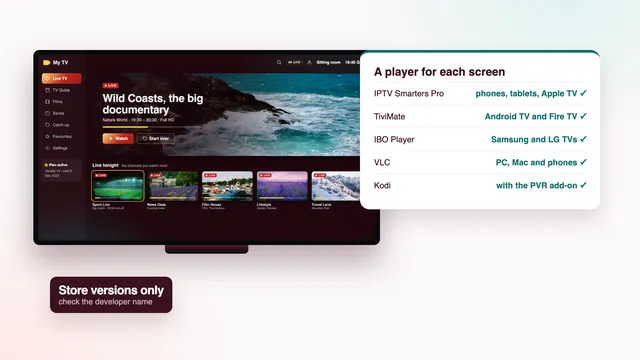
Search by name. These are the players LG owners in Ireland most often find, depending on the model and the country set on the TV:
- IPTV Smarters Pro by Tech Smarters Private Limited. You enter the Xtream Codes details and it brings the guide, films, series and catch-up along. Whether it is listed on an LG depends on the model and the country.
- IBO Player. It shows a MAC address and a device key, and you link the playlist on its web page. The app maker charges a yearly or lifetime activation fee.
- Smart IPTV. It shows the MAC address, the playlist goes in from its website, and each TV needs one activation.
The store follows the services country chosen in the TV’s location settings, normally Ireland for a set bought and installed here. A TV brought over from elsewhere can show a shorter or longer list. Read the developer name on each store page before installing: an icon is easy to copy, a developer’s name much less so. The comparison of players across phones, sticks and TVs goes beyond the television.
MAC activation, seen from an LG
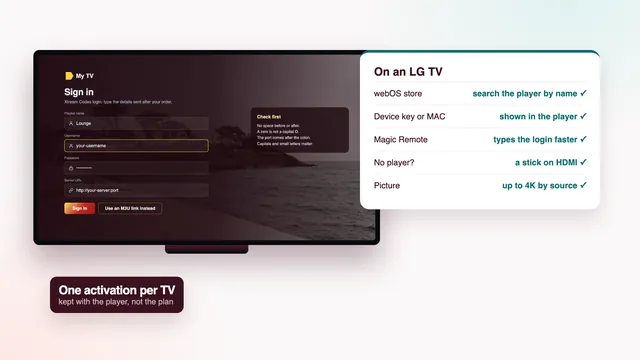
If your LG lists IBO Player or Smart IPTV, the login never has to be typed on the television at all. The app opens on a screen showing the TV’s MAC address, sometimes with a device key underneath. Those two codes are where your playlist is sent.
- Copy down the MAC and any device key exactly as the app displays them.
- On your phone or laptop, open the web page named on that screen and fill in the codes.
- Paste the M3U link from your login message, or the three Xtream Codes details if the page has fields for them.
- Settle any activation charge there, where the app maker asks for one.
- Back on the TV, quit the app fully and open it again.
That last step catches people out on an LG. With the fast start option on (called Quick Start+ on many models), pressing power on the remote only sends the set to sleep, and an app left open can wake up still showing an empty list. Close it from the recent apps view, or switch the TV off at the wall for half a minute, and it reloads with your groups.
To read the MAC in the menus instead, open the network settings and the details of the Wi-Fi or wired connection, where an advanced page lists it; the information page about the TV often shows it too. The cable and the Wi-Fi carry different addresses, so pick how the TV will connect before you activate anything.
The fee goes to the app maker, who sets it and may change it. We do not sell the app or take any part in that payment. If you replace the TV later, the activation usually stays with the old set’s address unless the app maker agrees to move it, while your login moves freely to any player you choose.
Typing a login with the Magic Remote
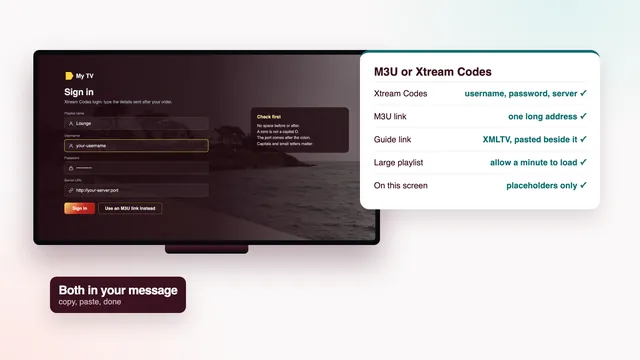
Part of the best IPTV for LG TV setups is simply how quickly the login goes in. Players such as Smarters Pro want the three Xtream Codes details typed on the TV itself: your username, your password and the server address, written like http://your-server:port. With a Magic Remote this is short work.
- Point the remote at the screen and the pointer appears. Aim at a key on the on-screen keyboard and click the wheel to press it.
- Roll the wheel to move through long lists, such as the channel groups once you are logged in.
- Many models put a microphone key on the on-screen keyboard. Speaking a username can work; speaking a server address rarely does, so keep voice for searching titles.
- If the pointer vanishes, give the remote a small shake. It hides after a few seconds without movement.
| Method | What you need | Good for | Weak spot |
|---|---|---|---|
| Magic Remote pointer | A Magic Remote paired with the TV | The three Xtream Codes fields | A long M3U address still takes patience |
| Arrow keys on a basic remote | Nothing extra | Short usernames | Slow, and one slip means typing it again |
| USB keyboard | A wired keyboard in one of the TV’s USB ports; most LG sets accept one | Server addresses and passwords | A cable across the floor for five minutes |
| LG’s phone app | LG’s own remote app on a phone on the same Wi-Fi | Typing with the phone’s keyboard | Works on many models, not all |
| The player’s web page | A MAC-based player such as IBO Player or Smart IPTV | Pasting the M3U link without typing on the TV | The app maker’s activation fee |
If your set came with the basic remote, a Magic Remote can be bought on its own. Confirm it is listed as compatible with your model year before ordering, since the generations pair with different sets.
When a stick is simpler than the LG app
The TV’s own app is the tidiest arrangement when it works: one remote, no extra box, nothing to charge. A stick on HDMI is the better call in these cases:
- the set runs webOS 3.5 or older, or the player in the store has gone a long time without an update;
- you want a player LG does not carry, such as TiviMate, which runs on Android TV and Fire TV;
- the TV came with a basic remote and you would rather type through a stick’s companion app on your phone;
- titles made in 4K play poorly in the TV app but well on another device on the same line, which points at the app’s decoding rather than your broadband;
- you move the TV setup between rooms, since a stick goes from one HDMI socket to another in seconds.
In any of those cases the best IPTV for LG TV viewing is the same plan, opened on a different device plugged into the same screen.
Amazon’s Fire TV Stick 4K and 4K Max, and the Fire TV Cube, all handle 4K HDR on titles made that way; check the exact model first, because a few of the newest sticks run Vega OS and only take apps from the Amazon Appstore. The guide to Fire TV sticks and their players explains how to tell them apart. A box with Android TV or Google TV certification is the other route, kept current through Google Play and its maker’s patches; the guide to choosing a box covers the specs.
Two LG settings matter once the stick is in. SIMPLINK (HDMI-CEC) lets the LG remote drive the stick’s menus, and HDMI ULTRA HD Deep Colour, switched on for that socket, opens the full 4K HDR signal. Both live in the general or connection settings, depending on the year. Run the stick from its own mains adapter, not from a USB port on the TV.
The line to an LG, and two screens in one home
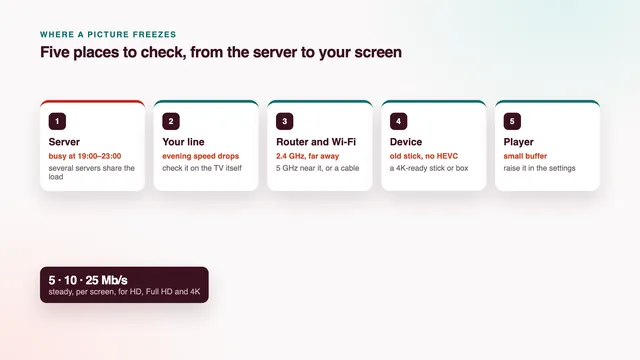
An LG on webOS asks no more of your broadband than any other screen. Plan on 25 Mb/s per 4K screen, 10 for Full HD and around 5 for HD, holding steady through the evening. Check the figure in the TV’s own web browser, not on a phone out in the hall.
Use the cable socket if a router or a powerline adapter is within reach. The port on most TVs runs at up to 100 Mb/s, still four times what one 4K stream needs, and it ignores the walls and the neighbours' Wi-Fi. Otherwise join the 5 GHz band, with the TV as near the router as the room allows.
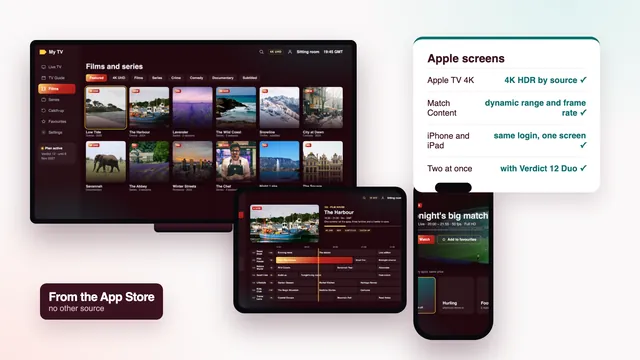
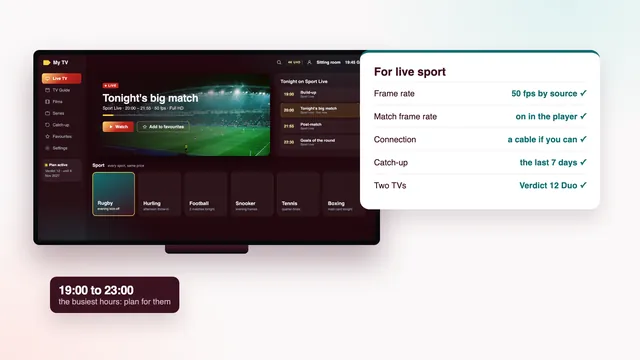
Count screens before you order: the three single-screen plans (Verdict 3, Verdict 12, Verdict 24) never run two streams together. An LG in the sitting room playing alongside a second TV, a tablet or a phone calls for Verdict 12 Duo, which plays on two at once for €79, a year in one payment. On a big match day that is the plan that keeps two rooms happy; the guide to watching live sport covers the rest of what matters then.
Scorecard checks to run on your LG
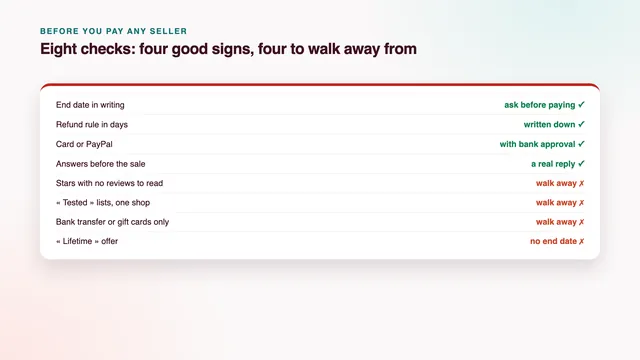
Six of the eight checks on the scorecard bear directly on an LG. Each one can be confirmed within 7 days of payment:
- Picture on your line (HD, Full HD, 4K by source): put on a 4K title and a Full HD channel at nine o’clock on a weeknight, when home broadband is under the most strain.
- Programme guide (7 days, on Irish time): in Smarters the guide arrives with the Xtream login; in a MAC-based player, confirm the XMLTV link was accepted and the times match the clock.
- Catch-up (the last 7 days): open yesterday evening’s programme from a channel’s archive. Not every webOS player shows catch-up, which is worth knowing before you pay an app maker.
- Your screens (TV apps, sticks, boxes, phones): the player is listed, current and opens without freezing on your webOS version.
- Login arrives (2 min after payment): by WhatsApp or email, any hour of the day; the minutes start once your card or PayPal payment clears.
- Money back (7 days if nothing plays): this covers a login that never comes, or a picture that no screen will show even with our team’s help. A change of heart is not covered.
Every Verdict plan carries the same 40,000+ channels, the same 120,000 titles on demand and the same picture. Verdict 12, our pick for most homes, is a single €49 for a year of viewing, €4.08 in monthly terms. Over two years, Verdict 24 works out at €3.71 monthly, and three months of Verdict 3 come to €29. See all four plans with their prices, or the plans page with end dates and costs per day.
After payment, the setup guide for each screen takes you from the login message to the first channel. If your webOS version is not in the table, or a player behaves oddly, write to the team with the model name; we answer 24/7 in English. Owners of both brands will find the menus for the other set in the Samsung TV guide.
Frequently asked questions
Which webOS version do I need?
Version 4.0 or newer, found on LG sets from about 2018, is where current players are most often listed and kept updated. Older versions can still work, but expect to add a stick if the store shows nothing or the app freezes.
Do I need the Magic Remote to set up a player?
No, though it makes typing far quicker. A USB keyboard or LG’s phone app does the same job, and MAC-based players avoid typing on the TV altogether.
I added my playlist on the web page, but the LG still shows nothing. Why?
The app is probably still running from before. With the fast start option on, the remote’s power button only puts the set to sleep. Close the app from the recent apps view or switch the TV off at the wall, then open the player again.
Does the IBO Player fee include the channels?
No. That fee pays the app maker for the player alone. The channels, films and guide come from your Verdict plan, which is the only thing we sell.
Can one login work on an LG and a phone?
Yes, one login opens in any compatible player. With Verdict 12 Duo both can play at the same time; with the one-screen plans, one plays at a time.
What is the best IPTV for LG TV models from before 2018?
Usually a plan watched through a stick or a box on HDMI, because players for webOS 3.5 and earlier may be missing or stuck on old versions. The login stays the same; only the device that opens it changes.