Buyer’s guide
Best IPTV M3U: the playlist link, the guide link and where each one goes
A best IPTV M3U setup begins with two lines in your login message: one link that lists every channel and one that fills the programme guide. Below you will find what an M3U playlist actually is, where each link goes in the common player apps, when the three-field Xtream Codes login is simpler, and how to keep a very large list tidy, fresh and on Irish time, with a fix for each snag along the way.
Inside an M3U playlist
M3U is one of the oldest playlist formats still in use. It started as a way to list music files and handles TV streams just as well. The file is plain text: open it in a notepad app and every line is readable.
A header line comes first, then two lines per channel. The first, starting with #EXTINF, carries the name shown on screen, a logo, the channel’s group and an ID that matches it to the guide. The second is the address of the stream. The player reads the file line by line and builds its list, groups and logos from those tags. With placeholders, one entry looks like this:
#EXTM3U
#EXTINF:-1 tvg-name="Channel name" tvg-id="channel-01" tvg-logo="http://your-server:port/logo.png" group-title="Group name",Channel name
http://your-server:port/live/your-username/your-password/0000.ts
Your link ends with type=m3u_plus. That fuller version carries the tags for groups, logos and guide IDs; a bare M3U holds only names and addresses, which leaves one long unsorted column. And a link is not a file: the link fetches the current list at each refresh, so new channels reach you on their own, while a file saved to a device stays as it was on the day you saved it.
Best IPTV M3U and guide links in your login message
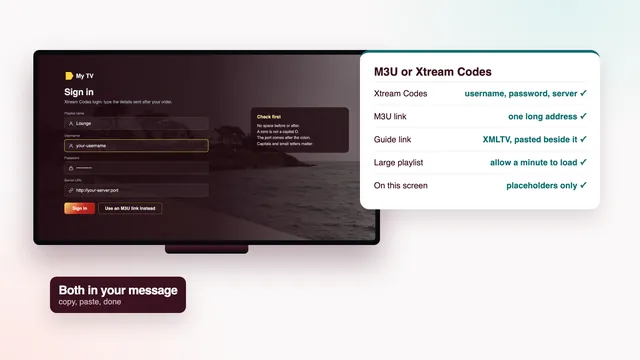
Roughly 2 minutes after you pay, the login message reaches your phone on WhatsApp or in your inbox. Inside are the Xtream Codes details (server address, username and password), the M3U playlist link, the guide link and your plan’s end date. With placeholders in place of your values, the playlist link reads:
http://your-server:port/get.php?username=your-username&password=your-password&type=m3u_plus
The guide link starts the same way but asks for xmltv.php instead of get.php, with no type at the end. It feeds the seven-day guide in XMLTV format, which is why players label its field XMLTV or EPG. Both links show your password in plain text, so treat them like a house key: paste them only into apps in your own home, since a login posted publicly can be suspended.
Copy the link rather than typing it
A playlist link runs to about a hundred characters, and one wrong letter breaks it. Copy it from the message on your phone wherever you can; several TV players accept it from a phone or computer, through a web page run by the app maker or a code you scan on the TV. If you must use the remote, the Xtream Codes fields are far shorter.
The best IPTV M3U habit is a simple one: keep the login message and paste from it each time you set up a screen, never from a half-remembered copy.
Where to paste the links in common players
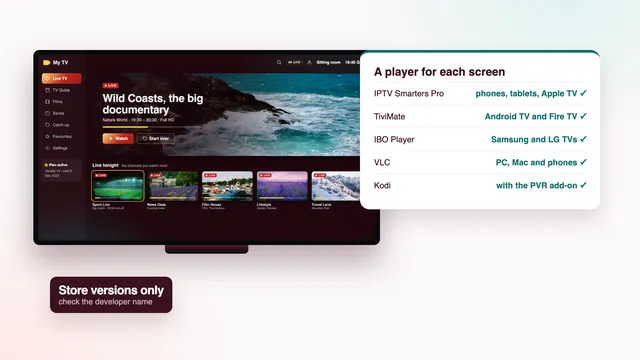
Each player asks for the same two links but words its menus its own way, and labels move between versions. The routes below are the usual ones at the time of writing; if a word differs on your screen, look for playlist, M3U URL or EPG.
| Player | Screens | The M3U link goes | The guide link goes |
|---|---|---|---|
| IPTV Smarters Pro | Apple and Android phones, tablets and TVs, plus Apple-silicon Macs | Add user › the playlist or file/URL option › paste the link | Comes with an Xtream Codes login; with M3U, in the app’s EPG option if it asks |
| TiviMate | Android TV, Google TV, Fire TV | Add playlist › M3U playlist › enter the address | Settings › EPG › add an EPG source |
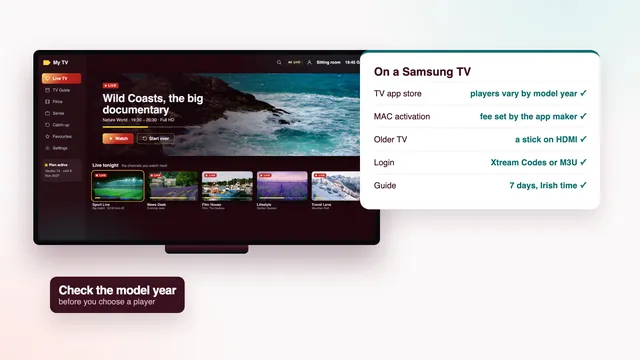
| IBO Player | Samsung, LG and other TVs | On the app maker’s website, entered with the TV’s MAC address or its device key | On that web page where a field is offered; otherwise from the playlist |
| Smart IPTV | Samsung and LG TVs | Uploaded on the app’s own website with the MAC address the TV shows; the app needs a one-off activation per TV | Read from the playlist tags where supported |
| VLC | PC, Mac, Android, iOS | Media › Open Network Stream on a computer; the network stream option on a phone | Not used: VLC shows no programme times |
| Kodi | Computers, Android boxes and sticks | Add-ons › PVR IPTV Simple Client › Configure › M3U playlist URL | Same add-on, EPG settings › XMLTV URL |
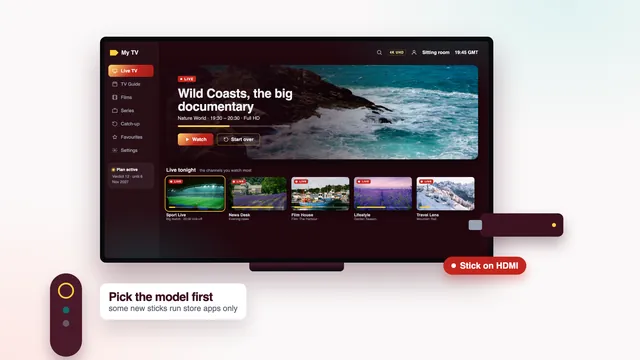
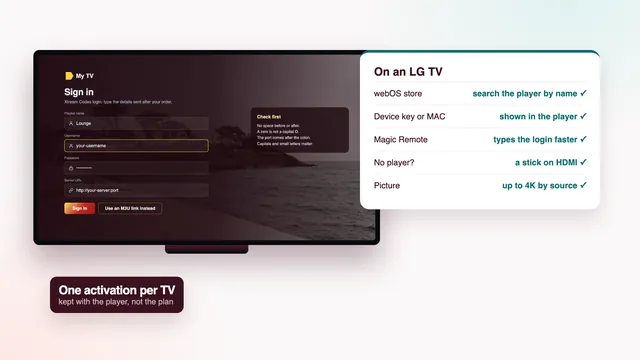
On Samsung and LG sets, which players the store offers varies with the model year and the country, and sets older than about 2018 may miss current versions. The Samsung TV guide and the LG TV guide walk through activation by MAC address; on an older set, a streaming stick on HDMI is often simpler.
Xtream Codes or M3U: which login to use
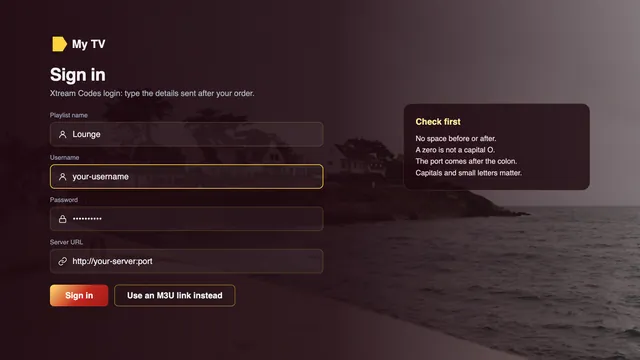
Both open the same channels on the same plan; what differs is how the player collects them. An M3U link makes it download one big list in a single go. Xtream Codes lets it ask the server for each part as you open it: live groups, films, series, catch-up.
| Xtream Codes | M3U link | |
|---|---|---|
| You type in | Server address, username, password | One long link, then the guide link |
| With a TV remote | Short and quick | Slow; send it from a phone |
| Programme guide | Arrives with the login | Usually needs the guide link |
| Films and series | Each in a separate section | Depends on the player |
| Catch-up | Where a channel keeps past programmes | Depends on the player; many skip it |
| On a weak device | Lighter: each part loads when opened | Heavier: the whole list loads at start |
| Accepted by | Most current player apps | Nearly every player, VLC and Kodi included |
| When the list changes | Seen straight away | Seen at the next refresh |
The short rule: where a player offers Xtream Codes, use it, and keep the M3U link for apps that take only a playlist, such as VLC on a computer, Kodi’s simple client or a TV player fed from its maker’s website. The guide to player apps shows which login each app takes on each screen.
Groups, favourites and refreshing the list
Over 40,000 live channels are only useful once sorted. Ours are arranged first by country and then by type. At the top sit the Irish groups (news, sport, entertainment, Irish-language, national and regional), with UK groups next, then sport and films, kids and documentaries, music, and finally world groups by country and language. The group-title tag in each entry carries that order into your player.
Shape the list to your home
- Hide groups you never open: long-press a group or open its options and choose hide. It disappears from the screen but stays in the playlist.
- Build favourites from the twenty or so channels you watch most and open that group first; some players keep a list per person.
- Reorder or renumber where the player allows it, so the remote’s number keys work as on an ordinary TV.
- Search by name rather than scrolling thousands of rows.
Refreshing the playlist and the guide
Because the M3U link is a live address, the player can fetch a fresh copy whenever it likes: at every start, once a day or only when you ask. Once a day suits a capable device; on a slow stick, refresh by hand when something looks stale, since each refresh reloads the whole list. The guide covers seven days ahead and needs updating every day or two; a guide that runs dry after a few days has stopped refreshing, so look for an EPG update interval in the settings.
After the end date: a new order, new links
Nothing renews on its own, and the playlist goes quiet once the end date in your message has passed. Ordering again later counts as a fresh order and comes with a fresh login, so replace the old playlist in each app instead of keeping both. The plan lengths and prices show how long each Verdict plan runs, from 3 months to 24 months.
The guide on Irish time, and the offset setting
Programme times in the guide are Irish times. In winter that means GMT; from the last Sunday in March until the last Sunday in October it means IST, Irish Standard Time, one hour ahead. On 6 November 2026, when this guide was checked, the clocks stand at GMT; they switch to IST on 28 March 2027.
Players show those times against the device’s clock, so a guide an hour out of step nearly always has one of two causes:
- The device’s time zone is wrong. In the device’s date and time settings, choose Dublin and turn on automatic time. That alone settles most cases.
- The player adds its own shift. Many players have an EPG time offset setting, counted in hours. Leave it at 0 until the device clock is right; only then, if the guide is still an hour out, set +1 or −1.
Change one thing at a time: fixing the clock and adding an offset in the same sitting is how a guide ends up wrong the other way. If one channel shows no programmes while the rest are full, its guide ID matches nothing; some players let you pair it with a guide entry by hand, or tell the team which channel it is. Catch-up leans on the same data (it reaches up to seven days back where a channel has it), so a wrong offset can open the wrong programme.
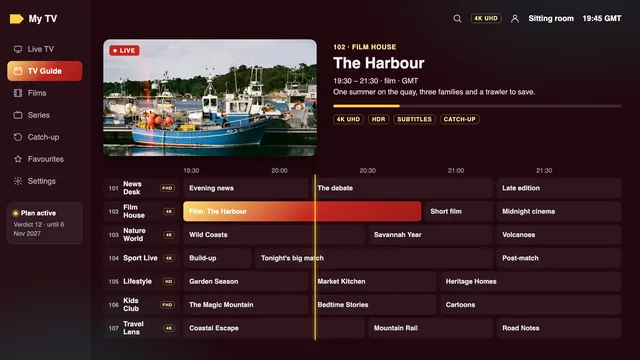
Large playlists on weak devices
This is a big list: over 40,000 live channels make tens of thousands of lines of text, more if the player pulls in films and series. A recent box or a 4K stick reads it in seconds; an older stick short of memory can take a minute, lag as you scroll or close the app mid-load. What helps:
- Use Xtream Codes on that device, so the player fetches one group at a time instead of the whole list.
- Hide the groups you never watch, leaving fewer rows to draw.
- Turn off channel logos if the player allows it; each logo is another small download.
- Load the guide for favourites only where the player offers that, and refresh it less often.
- Clear the player’s cache and free storage, because a nearly full stick slows every app on it.
- Restart the device before a long evening’s viewing.
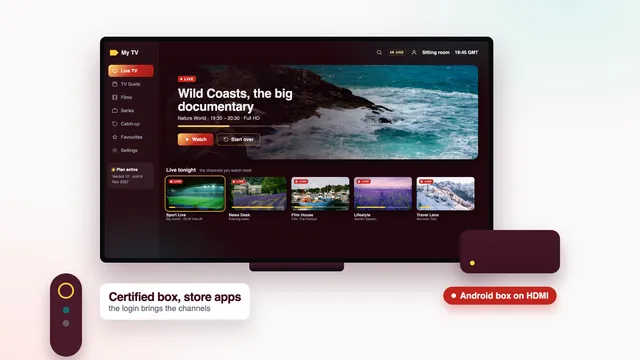
If none of that helps, the device has reached its limit. A box or stick with at least 2 GB of RAM handles the full list comfortably; the box buying guide and the Firestick guide say what to look for. When a slow list comes with a freezing picture as well, the guide to fixing buffering follows the stream from the server to the screen.
The checks that matter before you order
Five of the scorecard’s eight checks shape how a best IPTV M3U login works out on your screens:
- Programme guide (check 2: 7 days, on Irish time). The guide link fills it; compare a programme’s time on your TV with the clock.
- Your screens (check 4: TV apps, sticks, boxes, phones). Check that the player on each screen takes M3U or, better, Xtream Codes.
- Login arrives (check 5: 2 min after payment). Both links and the Xtream Codes details come in that one message.
- Two TVs at once (check 6: with Verdict 12 Duo). The same link saved on two TVs plays on one at a time unless the plan allows two.
- Help (check 8: 24/7, WhatsApp or email). Say which player and which screen, and the team walks you through the menus.
Each of the four Verdict plans comes with both links and the Xtream Codes details, and Verdict 12 Duo is the one for two screens at the same time. The setup guide goes step by step until a channel plays, the scorecard for finding the best IPTV for your home lists all eight checks, and the contact page reaches the team 24/7.
Frequently asked questions
Is there one best IPTV M3U player for every screen?
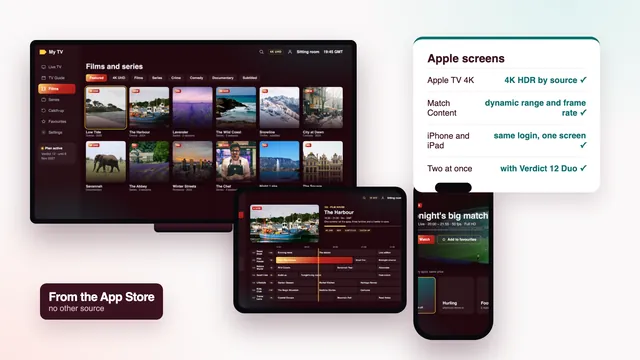
No, it depends on the screen. On Android TV and Fire TV many people use TiviMate; on phones and Apple TV, IPTV Smarters Pro is common; VLC opens the link on a computer; and Samsung or LG sets often use Smart IPTV or IBO Player through the TV’s MAC address.
Can I use the M3U link on two TVs?
You can save it on several screens at home, but with Verdict 3, Verdict 12 or Verdict 24 only one plays at a time. With Verdict 12 Duo, two screens can play simultaneously. The login is for one household.
Why does my M3U playlist show no programme guide?
Usually the guide link has not been added, or the player has not refreshed the guide since. The first load can take a few minutes; if one channel stays empty, its guide ID does not match and the team can help.
Do I get a new M3U link when I order again?
Yes. Each order is separate and comes with its own login and links. Paste the new ones into the same apps, replacing the old entries.
Is it better to save the playlist file to the device?
Usually not. A saved file does not update when channels change, and it holds your password; keeping the link in the player is simpler and stays current.
Why are the guide times an hour out?
Check the device’s time zone first: it should be Dublin, with automatic time on. If the clock is right and the guide is still an hour off, use the player’s EPG time offset, one hour at a time.