Buyer’s guide
Best IPTV no buffering: why a picture freezes and how to make it rare
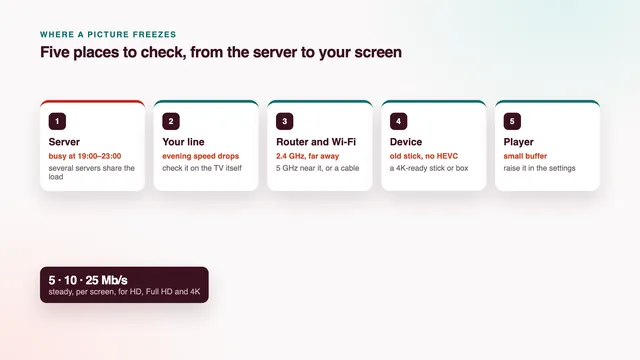
Anyone who types best IPTV no buffering into Google is asking for a match or a film that keeps moving until the end. No seller can honestly promise a picture that never pauses, because the stream passes through five places on its way to your screen and only the first of them is ours. This guide walks that path with you, one stop at a time, with the usual cause and the fix at each, a table of symptoms and what to send the team when the picture still stalls.
Best IPTV no buffering: what a buffer is and what to expect
Every player keeps a few seconds of picture in hand before it shows you anything. That store is the buffer. While data arrives at least as fast as the screen uses it, the store stays full; when the flow slows for longer than the store lasts, the player stops, spins and waits to refill.
Live channels hold a thinner reserve than films, because a match cannot be fetched before it happens. So live streams trail the broadcast by several seconds, sometimes close to thirty, and live sport is the first thing to stutter on a shaky connection.
A fair reading of best IPTV no buffering, then, is a home where freezes are rare and short. A second’s pause on the busiest night of the year can happen to any streamed picture; a freeze every few minutes, every evening, means one of the five places below needs work.
Three faults that look alike
- A freeze with a spinner: the buffer ran dry; data came too slowly somewhere on the path.
- A jerky picture that never stops to load: the device struggles to draw it, a decoding or frame-rate problem rather than a speed one.
- A sudden softer picture: the player stepped down to a lighter version while data ran short.
The five places a stream passes through
- The server, busiest in the evening.
- Your line, from fibre to a mobile router.
- The router and the Wi-Fi, across the last few metres.
- The device: stick, box or the TV’s own app.
- The player, with its buffer, decoder and stream settings.
One weak place is enough to stop the picture, and it is usually one inside the home.
Place 1: the server at the evening peak
This is the only stop we run. The load is spread across several servers in the busy hours, so a crowded evening on one does not reach every viewer at once. Even so, every streamed picture in the country is under strain from about seven to eleven at night, and Saturdays, Sundays and the nights of big matches are the heaviest.
A fault on our side leaves a pattern: the same channel freezes at the same moment on two devices at home, one of them on a cable, while your speed reading stays healthy. If one channel stalls while the rest of its group plays, its source is having a poor night.
Then switch to another channel in the group and message the team the time and the channel’s name as the list shows it; restarting the router will not calm a busy source. For live matches, the guide to sport on a crowded match night explains how to be settled and wired before the start.
Place 2: the line into your home
What counts is not the headline figure on your package but the speed the line holds, minute after minute, at the hour you watch. Read on the device that plays it, that is roughly 5 Mb/s for one HD picture, 10 for Full HD and 25 for 4K, without dips. Two screens on Verdict 12 Duo need the sum of both, and every download or video call in the house draws from the same pipe.
Fibre to the home or to the cabinet
With full fibre, glass runs right to the house and the evening dip is usually small, so freezes there point to the Wi-Fi or the device. With fibre to the cabinet, copper phone wire covers the last stretch and speed falls as that run gets longer, so neighbours on one package can see very different readings. Plug the router into the main phone socket, not an extension.
Fixed wireless and 4G or 5G routers
A fixed wireless antenna needs a clear line of sight to its mast, so trees in leaf or an antenna knocked by wind show up as a reading that swings from minute to minute. A 4G or 5G router shares its mast with every phone nearby and often sags after dinner: set it high, at a window facing the mast. On a mobile link Full HD is a realistic aim; 4K needs a strong signal.
On a modest line, the best IPTV no buffering setup is one that asks for less: watch the Full HD copy of a channel when the list has one, and keep 4K for the screen on the cable.
Place 3: the router and the Wi-Fi
Many freezes blamed on broadband happen in the last ten metres. A phone beside the router can show a fine reading while the stick two rooms away gets a fraction of it, because every wall and floor weakens Wi-Fi, solid block and stone most of all. Work down this list:
- Use 5 GHz near the router. 2.4 GHz travels further through the house but is slower and shared with neighbouring networks and household gadgets. If the TV is in the router’s room or one wall away, join the 5 GHz network; a router showing one name for both bands usually lets you split them.
- Run a cable. Ethernet from the router to the stick, box or TV takes the Wi-Fi out of the path. Most boxes and smart TVs have the socket, and some sticks take an Ethernet adapter made for them. Ten metres of thin cable is often the cheapest cure of all.
- Powerline adapters carry the network through the house’s electrical wiring, one beside the router and one beside the TV. Results depend on the wiring; plug them directly into the wall, never into a multi-socket strip.
- A mesh system spreads two or three Wi-Fi units around the house so the TV sits close to one, ideally with that unit wired back to the router.
- Move the router out of the cupboard and off the floor, roughly central, and restart it now and then.
Place 4: the device behind the TV
The stick, box or TV app must unpack the picture as fast as it arrives. 4K channels use HEVC, also called H.265, and a device that cannot decode it in hardware will stutter or refuse to play, however quick the line; 4K also needs a 4K screen and an HDMI 2.0 connection at least. Memory matters too: with a library of 120,000 titles and over 40,000 channels to index, a device with under 2 GB of RAM slows as the evening goes on.
A stick that has had its day opens the player more slowly each week, plays well for an hour and then stutters, runs hot behind a wall-mounted TV or has stopped getting updates. Before replacing it, pull the power for half a minute, close background apps, clear the player’s cache and free some storage.
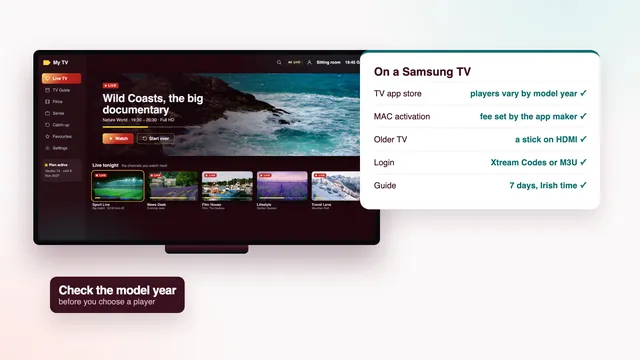
The Lite and the older basic Fire TV sticks stop at Full HD; the Fire TV Stick 4K, the 4K Max and the Cube show 4K where the source has it. The Firestick buying guide sets out which model suits which TV, and the guide to choosing an Android box lists the specs worth paying for, from hardware HEVC and 4K output at 60 Hz to a network socket and enough memory.
Place 5: the player and its settings
The same stream can play smoothly in one app and stutter in another. Three settings, usually under a menu such as Settings › Player or Settings › Playback, are worth knowing; the setup page covers the rest of a new screen’s settings.
Buffer size
A larger buffer holds more picture in reserve, so short dips pass unnoticed. In exchange, channel changes take a moment longer and you drift a touch further from live. If freezes are brief and frequent, raise it one step and watch a full evening before moving it again.
Decoder: hardware or software
Hardware decoding hands the work to the device’s video chip and is usually smoother. Software decoding uses the main processor and copes with odd formats, but labours with 4K and with sport at 50 frames per second. If the picture jerks without a spinner, or the sound drifts away from the picture, switch to the other option and compare.
Stream format
Some players let you choose how live channels are delivered, often between two short labels such as TS and HLS. Neither wins everywhere. If a channel keeps freezing while your speed holds, switch, restart the player and give it a fair evening.
If one player keeps struggling, the same login opens in others: the comparison of player apps goes through them, and the M3U and Xtream Codes guide explains which login loads faster on a modest device.
Symptoms, likely causes and fixes
Find the row that matches what you see. If two seem to fit, start with the cheaper fix: a setting or a cable costs less than a new device or a faster package.
| Symptom | Probable cause | Fix, in order |
|---|---|---|
| Every channel stalls in the evening but plays by day | A busy line, or a server under peak load | Read the speed on the device then; if it drops, watch in Full HD or use a cable; if it holds, tell the team the time and channel |
| One channel stalls, the rest of its group plays | That channel’s source is having a poor night | Watch another in the group; report the name and time |
| Freezes on the bedroom TV only | Weak Wi-Fi, or the 2.4 GHz band | Join 5 GHz, or use Ethernet, powerline or mesh |
| 4K freezes while Full HD plays | Under 25 Mb/s steady, or no hardware HEVC | Check the device’s spec and its speed reading; watch Full HD meanwhile |
| A jerky picture with no spinner | Software decoding or a frame-rate mismatch | Switch the decoder; on Apple TV, switch on Match Frame Rate in the Match Content menu |
| Smooth for an hour, then stuttering | An old stick running hot or short of memory | Restart it, clear the cache, free storage, give it air |
| A pause, a spinner, then a jump forward | A buffer too small for the line’s dips | Raise the buffer size one step |
| Freezes when someone else at home downloads | The shared line is full | Schedule big downloads overnight; put the TV on a cable |
| Films play well, live channels stall | Live keeps a thinner reserve than films | Raise the buffer; switch the stream format where offered |
Measure on the device, then tell us what you saw
A speed reading only helps if it is taken where the picture plays, not on a phone beside the router.
- Install a speed app from the device’s own store, or open a speed page in its browser.
- At the hour you usually watch, run it three times a few minutes apart and keep the lowest download figure.
- Run it again in the afternoon. A big gap between the two points to the line; low at both times points to the Wi-Fi or the device.
- If you can, compare a reading on a cable with one on Wi-Fi: the gap is what the wireless link costs you.
What to send the team
When the reading looks fine and the picture still freezes, put these in your message:
- the channel’s name and group as the list shows them, with the date and time it froze;
- the device model and the player app, with its version if you can find it;
- cable or Wi-Fi, and which band;
- the lowest speed reading taken on that device at that hour;
- whether other channels, films or a second screen show the same freeze.
Write through the contact page or message the team on WhatsApp. The team answers 24/7, in English. Before ordering, you can also send your evening reading and the screens you plan to use, and they will say which picture to expect.
The checks that matter here
Of the eight checks on the scorecard, five decide how a best IPTV no buffering search ends in your house:
- Picture on your line (check 1: HD, Full HD, 4K by source). Which of the three you get on a given evening depends on your line and your device.
- Your screens (check 4: TV apps, sticks, boxes, phones). An old stick or a TV app without hardware HEVC caps the picture, whatever the line.
- Two TVs at once (check 6: with Verdict 12 Duo). Two pictures at once need the speed of both.
- Money back (check 7: 7 days if nothing plays). What it covers is set out in the warning below.
- Help (check 8: 24/7, WhatsApp or email). Send the details above and the team goes through them one by one.
The plan lengths and prices start at €29 for three months, the four Verdict plans on the home page carry the order buttons, and the eight checks for the best IPTV in your home sit together on one printed-style sheet.
Frequently asked questions
Is there a best IPTV no buffering plan that never freezes?
No honest seller can promise one, because the picture crosses your line, your Wi-Fi, your device and your player as well as the server. On a steady line with a wired or 5 GHz device, expect smooth play with any pause short and rare.
Does Verdict 12 Duo or a longer plan play more smoothly?
No. The four plans differ only in months and screens. With Verdict 12 Duo, two screens can play side by side, so your line has to carry both pictures.
Why does the picture stall only during big matches?
Those evenings bring the most viewers onto every part of the path at once, and live sport at 50 frames per second needs a steady flow. Wire the TV, pause downloads at home and open the channel a few minutes early.
Will a faster broadband package stop the buffering?
Only if the line is the weak link. If the TV already reads well above what the picture needs at the hour you watch, a faster package changes nothing; look at the Wi-Fi or the device instead.
How much delay is there on live channels?
Live streams usually trail the broadcast by several seconds, sometimes nearly thirty. A larger buffer adds a little to that in exchange for fewer pauses, which only matters if you follow the same match on your phone.