See plans

Setup

Best IPTV setup: from your login message to a channel on screen

This best IPTV setup page takes you from the login message on your phone to a channel playing on your TV. It stays general on purpose: which player suits each kind of screen, the steps every player shares, the programme guide on Irish time, five settings worth changing once, and fixes for the problems people meet most. For the menus of one particular device, each section points to the guide that covers it in depth.

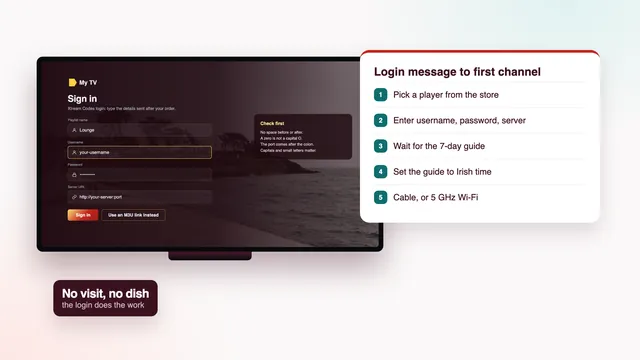
TV showing the Xtream Codes login of an IPTV player beside the five setup steps

Your details

The login message, and the lines each player needs

Your login message is short, and every line in it has one job. Three lines belong together as the Xtream Codes login, the format nearly every TV player prefers: username, password, server URL. Two more are links, an M3U playlist for players that read playlists and a programme-guide link for their listings. The last line is the date the plan ends.

Wherever a player gives you the choice, go with Xtream Codes. With a remote, three short fields beat one long web address, and listings, films and series load along with them. The M3U link is the fallback for players without an Xtream option.

Paste rather than retype where you can, and keep a screenshot of the message on your phone. Treat it like a house key: it opens your household’s access, so it stays out of group chats and public posts.

What reaches your phone 2 minutes after you pay

Username
bst-•••••
Password
••••••••
Server URL, with port
http://your-server:port
M3U playlist link
…/get.php?…type=m3u_plus
Programme-guide link
…/xmltv.php?…
End date
the date printed in your message

Hidden here: only you receive the real details.

What each line of the login message is for
Line in the messageWhere it goesWatch for
UsernameThe Xtream Codes login screenCapitals, and no space left at the end
PasswordThe same screen, under the usernamePaste it if you can; l and I look alike on many TV fonts
Server URLThe server or URL fieldKeep the http:// in front and the :port part after the address
M3U playlist linkA playlist field, in players such as VLC, Kodi or Smart IPTVOne long line: copy all of it
Programme-guide linkAn EPG or XMLTV field, when the player asks for oneNeeded only alongside the M3U link
End dateYour calendarThe login stops working that day

The guide to M3U and guide links shows where each player keeps its playlist and EPG fields, and when the M3U route is worth the extra typing.

Players

The player to choose on each screen

Where to find a player, by screen, at the time of writing
Your screenWhere the player comes fromPlayers to look forGo deeper
Fire TV stick or CubeDownloader from the Amazon Appstore, then the link sent with your loginIPTV Smarters Pro; TiviMate also runs on Fire TVFirestick guide
Android TV / Google TV set or boxGoogle PlayIPTV Smarters Pro, TiviMatebox guide
Samsung smart TV (Tizen)The TV’s own app storeSmart IPTV or IBO Player (Smarters Pro: some models only)Samsung TV guide
LG smart TV (webOS)The TV’s own app storeSmart IPTV or IBO Player (Smarters Pro: some models only)LG TV guide
Apple TV, iPhone or iPadThe App Store onlyIPTV Smarters ProApple TV guide
Android phone or tabletGoogle PlayIPTV Smarters Proapp guide
PC, Mac or KodiVLC and Kodi from their makers; Smarters Pro on Macs with Apple siliconVLC; Kodi with « PVR IPTV Simple Client »M3U guide

Every player is only a reader. None of them contains channels, and no app, stick or box on this page is ours to sell. Most players cost nothing to download, and some sell optional extras inside the app, at prices that vary by store. Smart IPTV charges a one-time activation per television; the playlist then travels to the TV from the app’s website, matched by MAC address. IBO Player works off the MAC address or its own device key, and its maker charges a yearly or lifetime activation.

Two cautions. Look-alike apps exist, so before installing IPTV Smarters Pro, confirm the listing names Tech Smarters Private Limited as developer. And a few newer Amazon sticks use Vega OS, which only installs from the Appstore; look up the model before relying on one. Steer clear of APK files passed around online, which can carry malware.

Samsung and LG sets from before roughly 2018 may not receive current player versions. A streaming stick or a certified Android TV box in a spare HDMI port is then the easier route, and the guide to the best IPTV app for each screen compares the players in more depth. Whichever screen you start with, a best IPTV setup ends with the same three details typed into one player.

Step by step

Best IPTV setup in seven steps

  1. 01

    Measure the speed on the screen itself

    Open a speed-check app or page on the TV, stick or box that will play, ideally between 19:00 and 23:00 when lines are busiest. Per screen, a steady 5 Mb/s carries HD; double that for Full HD; 4K wants 25.

  2. 02

    Connect the screen as well as the house allows

    Plug in an Ethernet cable if the router is within reach; nothing wireless is as steady. Otherwise choose the router’s 5 GHz network in the device’s Wi-Fi menu, and move the router or the device so that they share a room.

  3. 03

    Install one player from the device’s store

    Android TV and Google TV use Google Play; Apple devices use the App Store; Samsung and LG sets have stores of their own. A Fire TV stick needs Downloader from the Appstore first, plus « Install unknown apps » switched on for it (the switch lives in Settings › My Fire TV › Developer options); then open the link sent with your login.

  4. 04

    Pick the Xtream Codes login

    When the player asks how you want to log in, choose Xtream Codes; a few players call it Xtream API. Leave the playlist option for now: that is the M3U route, for players without Xtream.

  5. 05

    Type in the three login details

    Username and password are case-sensitive. The server URL keeps its http:// prefix and the number after the colon, which is the port, exactly as the message shows. Read all three back once before you press the button.

  6. 06

    Let the first load finish

    The first sign-in downloads a lot at once: more than 40,000 channel entries, the 120,000-title library and a week of listings. Give it time, and do not press back while the progress indicator is still moving.

  7. 07

    Play a channel, then check the guide and catch-up

    Open a channel from the Irish groups, set the programme the guide shows against your phone’s clock, and play something from yesterday on a channel with catch-up. When all three behave, that screen is ready.

Two screens on Verdict 12 Duo? Run steps 2 to 7 again on the second one, using the very same details. Single-screen plans let the player sit on several devices, though only one may play at any moment.

Irish time

The guide on Irish time, and the EPG time offset

Listings arrive in Irish time. From the last Sunday of October to the last Sunday of March that means GMT; for the rest of the year it means IST, Irish Standard Time, which is GMT plus one hour. A player that reads its clock from the device follows the change without any help.

Today’s zone (6 November 2026): GMT. Next change: 28 March 2027, when the clocks move forward an hour into IST; after that, 31 October 2027, back into GMT.

When the guide and the screen disagree by exactly one hour, fix the device before the player. In the device’s date-and-time menu, pick Dublin or Ireland as the time zone, turn automatic time on, then restart the player and look again.

Only if the device is right and the listings are still out should you touch the player’s « EPG time offset ». Take a programme you can see playing. Say the news is on screen at 21:00 by your phone but the guide places it at 20:00: the guide is an hour behind, so set the offset to +1. If the guide places it at 22:00, set it to −1.

Players refresh their listings on a schedule of their own. Most also have a manual guide update in their settings, which is quicker than waiting a day after a clock change.

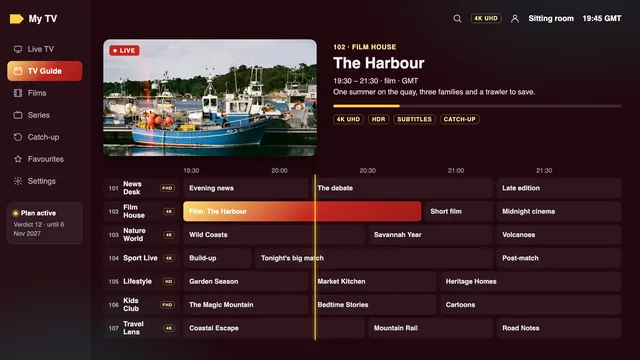
Seven-day programme guide of an IPTV player on Irish time with HD, FHD and 4K badges
The seven-day guide of a player, set to Irish time
The Irish clock after 6 November 2026
PeriodIrish clockAgainst UTC
Now until 28 March 2027GMTUTC+0
28 March 2027 – 31 October 2027ISTUTC+1
After 31 October 2027GMTUTC+0

A best IPTV setup is only finished when the guide agrees with the clock on the wall, because catch-up and reminders lean on the same times.

Settings

Five settings worth changing once

1. Video decoder: hardware

In the player’s playback settings, choose hardware decoding, sometimes labelled HW. The device then decodes HEVC (H.265) itself, which 4K needs. Switch back to software only for a channel that shows sound over a black picture.

2. Output: resolution and matching

On a 4K TV, set the device’s output to 4K, plugged into HDMI 2.0 or later. Apple TV owners have two switches to flip, « Match Dynamic Range » and « Match Frame Rate », both inside Settings › Video and Audio › Match Content; with them on, HDR and 50-frame sport arrive as broadcast.

3. Buffer size, where the player has one

Some players offer a small, medium or large buffer. A larger one waits a moment longer before starting and rides out short dips in a busy evening line. If the picture already plays smoothly, leave it as it is.

4. Favourites and hidden groups

The list opens with the Irish groups, then the UK, sport, films, kids, documentaries, music and the world by country. Star the channels you use and tuck away the world groups nobody at home watches, so the remote has less to scroll through.

5. Parental PIN

Set the player’s PIN and lock the groups or film categories you want kept from children. Note the PIN somewhere safe: a forgotten one can mean reinstalling the player and entering the login again.

Leave the other menus at their defaults unless the team suggests a change; a best IPTV setup rarely needs more than these five. If a picture still pauses at peak hours after these five, the guide to cutting buffering at home works through the router, the Wi-Fi band and the line in order.

Fixes

Fixes for the problems people meet most

Common setup problems and how to fix them
What you seeUsual causeWhat to do
The player says the login is wrongOne character out of place in the username, password or server URLPaste the three lines again, then make sure the server URL still starts with http:// and ends with its port
Channels load, but the guide is emptyListings still downloading, or an M3U login without the guide linkWait a few minutes, run the player’s guide update, or paste the programme-guide link
Every listing sits an hour outWrong time zone on the device, or automatic time switched offSet the device to Dublin with automatic time; then the EPG time offset if still needed
Pauses in the evening only2.4 GHz Wi-Fi, a crowded line, or a server busy at the evening peakA cable or 5 GHz, a larger buffer, or the Full HD version of the channel
A 4K title is black or jerkySoftware decoding, an older HDMI port, or a device without HEVCHardware decoder on, a 4K-ready HDMI 2.0 port, or the Full HD version
Picture with no soundAn audio format the TV or soundbar cannot decodeSet the device’s audio output to stereo or auto
A second screen cuts off the firstTwo screens playing on a single-screen planUse one screen at a time, or move to Verdict 12 Duo when you next order
Downloader cannot install the playerUnknown apps still blocked for Downloader, or a stick running Vega OSGive Downloader the permission under Developer options (menu missing? click the device name 7 times under Settings › My Fire TV › About); Vega OS sticks cannot do it
A neighbour cheers before you see the goalLive streams lag the broadcast, usually by a few seconds and at most around half a minuteNothing is wrong; catch-up and live sport both follow that delay
The login worked for months, then stoppedEnd date reachedOrder again, then type the fresh details into your existing player

Still stuck? Tell the team which device and player you are on, how far you got, and attach a photo of the screen. A photo usually saves two rounds of questions, and the team can then name the exact menu to open.

More screens

Second screens, other rooms and keeping the login private

The same login goes into every player in the home. On the single-screen plans you can set it up on the sitting-room TV, a bedroom stick and your phone, and use whichever you like, one at a time; a second stream started on such a plan can cut the first one off. On Verdict 12 Duo, two screens play together.

Each plan is for one household. A login passed to another home or posted online can be suspended, which takes it away from your own screens as well. A family member who moves out needs a plan of their own.

Setting up an iPhone or an iPad as well as the TV? The guide to Apple TV, iPhone and iPad covers the players for those screens. For a Fire TV stick in a second room, the guide to the best IPTV for Firestick goes through the remote, one field at a time.

FAQ

Setup questions

How long does a best IPTV setup take?

Expect a few minutes per screen once the player is installed: three details to type and the lists to load. The first Fire TV stick is slower, since Downloader has to fetch the player first; every screen after that goes about as quickly as the one before.

Do I need a box or a stick?

Rarely. You need one when the TV can’t run a current player, which mostly means older sets; most smart TVs, phones and tablets can. Hardware brings no channels of its own: it is just another screen for the login.

Will someone walk me through it?

Yes, on WhatsApp or by email, at any hour. Say which device and player you have and send a photo of the screen you are looking at, and the team will tell you which button to press next.

Should I use Xtream Codes or the M3U link?

Xtream Codes, wherever the player has it: three fields, and the guide and library arrive with them. Save the M3U link for a player with no Xtream option, and paste the programme-guide link beside it.

The clocks changed and the guide is an hour wrong. What do I change?

Start with the device: the time zone should read Dublin or Ireland, with automatic time on. If the listings are still an hour out after a restart, shift the player’s EPG time offset by an hour, plus or minus as the guide runs behind or ahead.

Do I have to set everything up again when I renew?

You keep the players you installed. Renewing means a fresh order and fresh details, so each screen needs them typed in once, a few minutes per screen.

One screen playing? The next one takes minutes

Once the first screen works, the rest of the house is a matter of typing the same three details again. Still deciding on a plan? Each Verdict plan is laid out with its months, its screen count and its daily cost, settled in a single euro payment.